Install Wsprdaemon
0.5: BIOS Settings
Before setting up the system with an operating system it is recomended to configure the following BIOS/Firmware settings to allow better operation of the Beelink computer.
Entering the BIOS Setup Screen
Plug in the computer and connect and HDMI or Display Port between the computer and your monitor.
Press the power button to turn on the PC, then quickly tap Delete on the keyboard.
You should now be in the BIOS setup screen.
Configuring the BIOS Setup
Using the arrow keys, open the tab.
Move down to , and press Enter to enter the sub menu.
Select using Enter, and move the cursor up to . Now press Enter to select it.
Press Escape to exit the sub menus, until you reach the tab again.
Move down to and enter the sub menu.
Move to and select
Now, move down to and press Enter.
Finally, press Enter over , and move the cursor down to . Then, hit Enter again to select it.
Move back to the tab using Enter.
Finally, move over to the tab, and move down to .
Press Enter over , to confirm changes.
This will configure the computer to automatically turn back on in the event of a power outtage, well as setting the internal fans to always full speed. (To prevent overheating issues)
1: Install the Operating System
Youtube Video Walkthrough Link
Youtube Video Walkthrough Link This is a link to a video walkthrough, however, I recommend to using primarily this document as I speed through the setup pretty quick.
First before we can set up any software we need to install the OS, in this case Ubuntu.
Go to this download link and download the newest version of Ubuntu Server, for my installation I am using 24.04.1
The file will be a .iso file indicating it is a disk image. https://ubuntu.com/download/server
1.1: Flashing the Installation Media
Next download a program to flash the disk image to an external disk.
For MacOS I recomend using Balena Etcher although Balena works for Windows as well.
Once you have installed Balena Etcher grab a USB flash drive, It should be at least 8 GB.
First plug in the flash drive and open Balena Etcher
Next select "Flash from file" which will open a file browser window
Navigate to the location of the disk image (.iso) and select it
Then, select "Select Target"
Click the check mark of the flash drive you will be using.
Finally Click "Flash!" and wait until the process finishes
For Windows I recommend downloading Rufus but Balena Etcher also works
Once the program is installed grab a USB flash drive, It should be at least 8 GB.
First plug in the Flash drive into a free USB port on your personal computer
Next open Rufus and press the "Select" Button towards the top right of the screen.
Then, Select your flash drive from the dropdown at the top of the screen labeled "Device"
Next make sure that towards the bottom, under "File System", that Fat32 is selected rather than NTFS
Now select the "Start" button on the bottom right.
Select "OK" to the prompt telling you the flash drive will be erased
You may see a screen after this telling you there are two different ways the drive can be formated, select the default.
Later if you see issues try the other option.
Once the operation has completed eject the drive and remove it from your system.
1.2: Starting the OS Installation
Plug the flash drive into the computer you will be using as the server, with it turned off.
Now plug in a Keyboard (You will not need a mouse)
Now turn on the computer and immediately and repeatedly press the F7 Button quickly if you are using the recommended Beelink mini PC.
If you are using something else you may need to look up what that computer's hotkey is to enter its "Boot Menu".
Now that you are in the boot menu select the USB flash drive, if the screen shows an option that says UEFI and one that doesn't, select the one that says UEFI.
Now that the computer is starting up you should see menu that asks if you would like to "Try or Install Ubuntu" and a few other options.
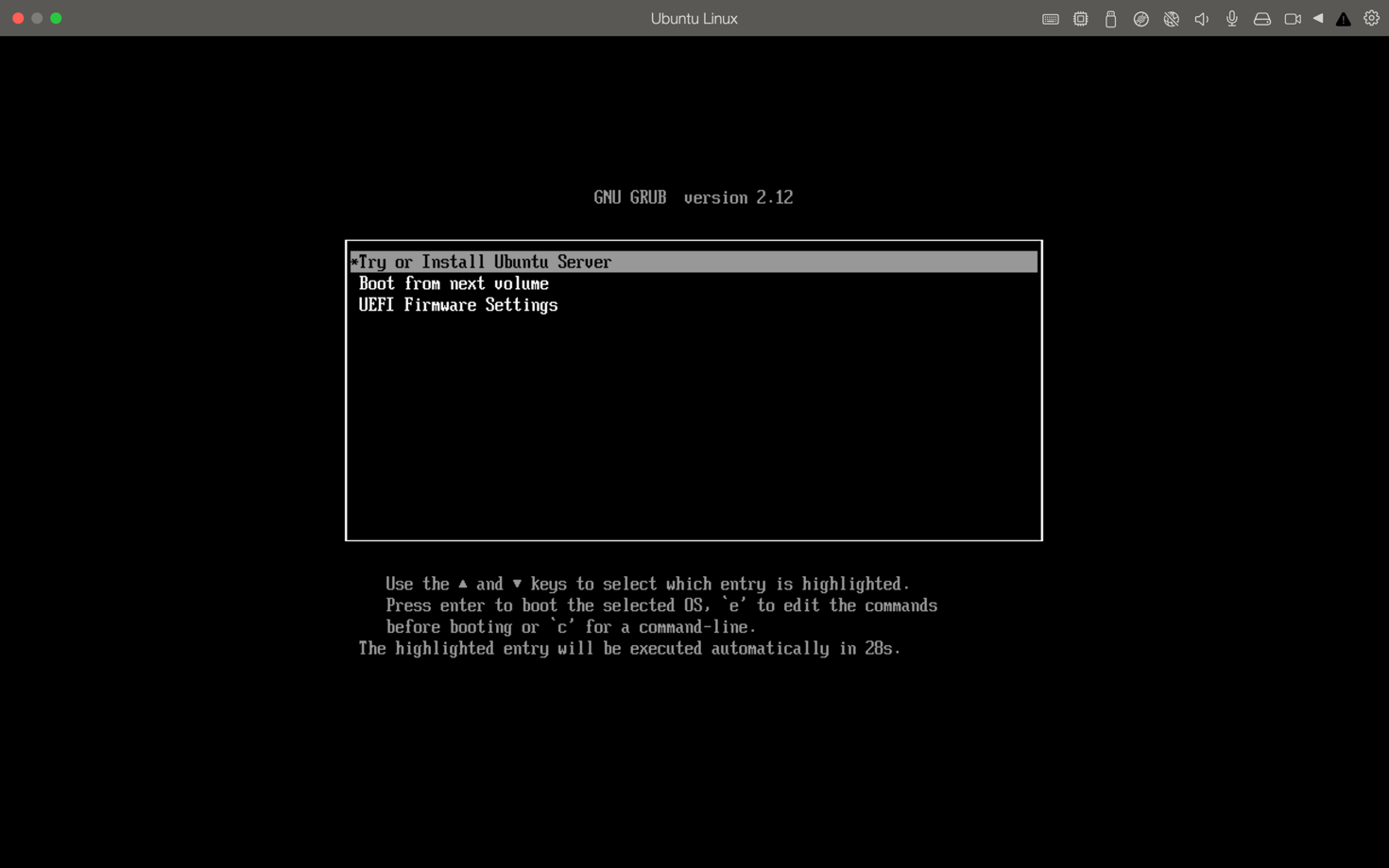
Select the option labeled with Enter.
You should see a bunch of text flying up the screen, this is normal. After a little bit you should see something like this.
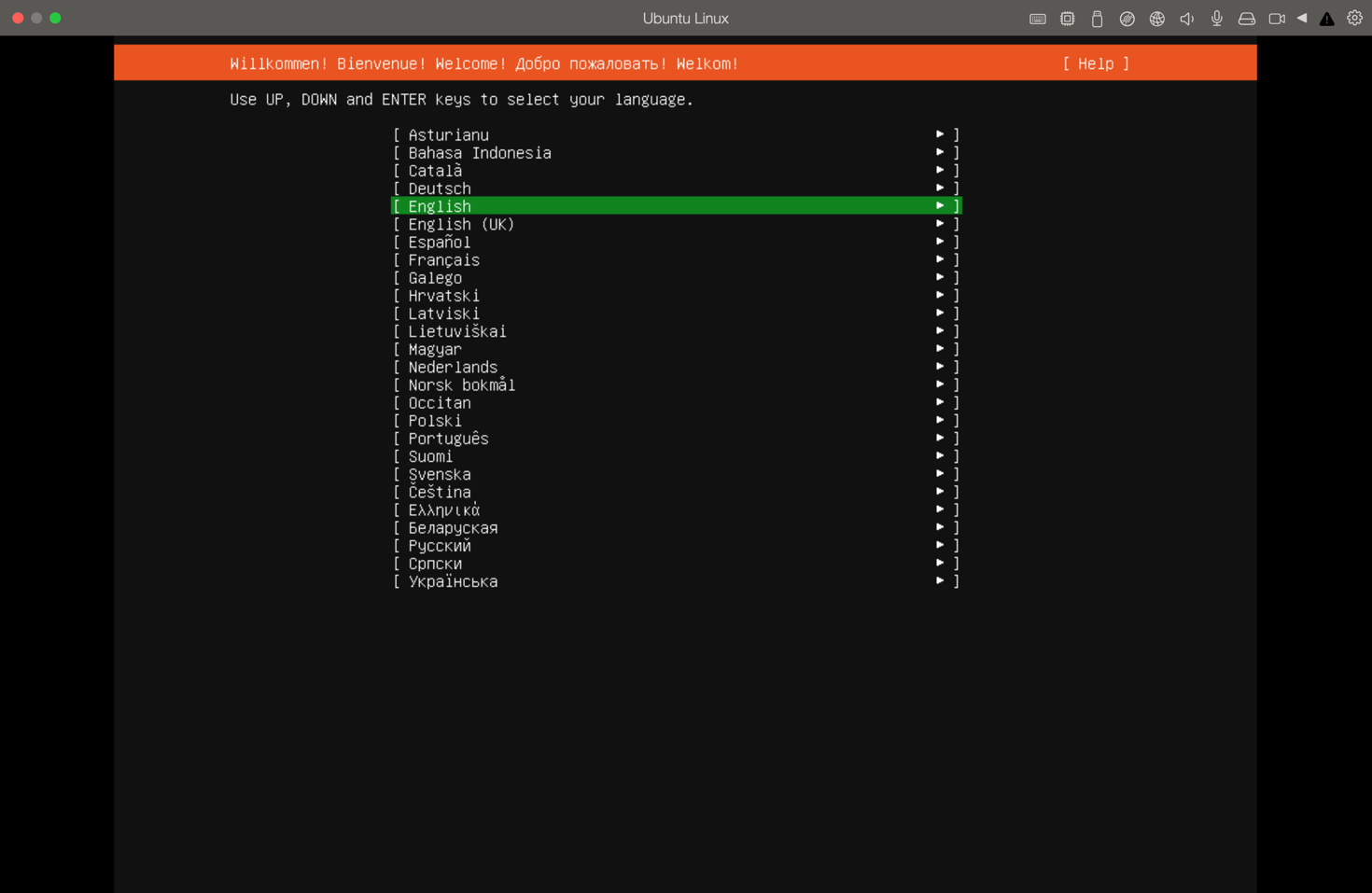
Using the arrow keys move the green cursor to English then press Space
Next you will see a screen asking you to select your Keyboard layout, leave the default options and select done with Space
On the next screen you will see a few options, using the arrow keys move the cursor up to the section labeled and press Space to select it.
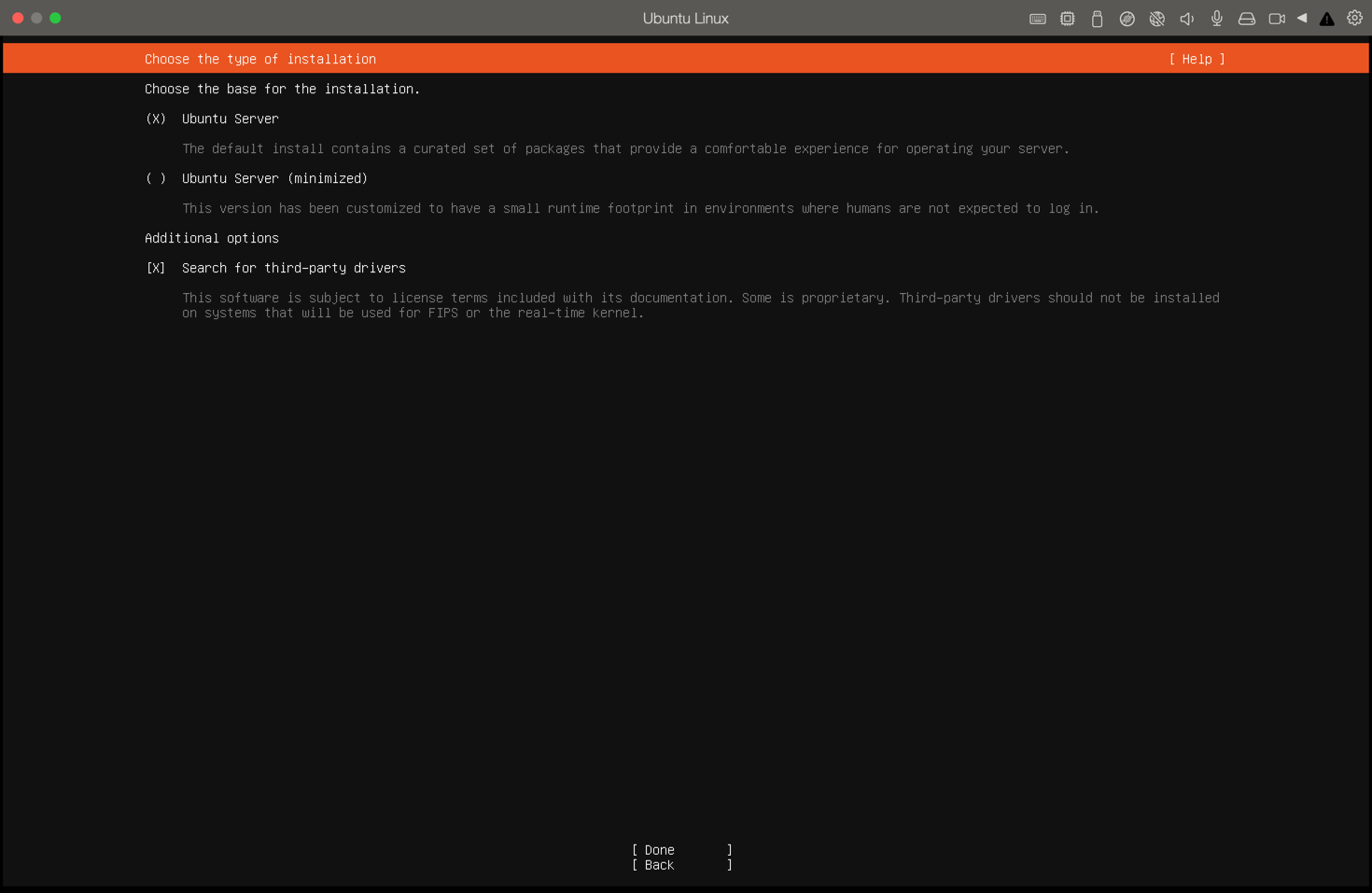
Move the cursor down and select done using Enter.
1.3: Next you need to connect the system to Wi-Fi.
Skip if using ethernet
Next if you are doing this on the NJIT campus
On the screen you should see a section called "wlo1", and text underneath that says disabled. Underneath this text is some text that will look like this 12:34:a5:b6:7c with different values. This is the MAC address of the computer or its network "Hardware ID". Write down this number and save it for later.
Navigate on your personal computer to this website, make sure you are connected to the network NJITsecure, and doing so Without a VPN turned on. https://myiot.validate.njit.edu/
Type in your UCID to login. Once logged in, select add.
Type in a name for the device something like "Server" will do but it is up to you. On the next line under "Device ID" type in the MAC address you wrote down earlier. Then click "Register Device"
Now go back to the server
Move the cursor up to "wlo1" and press Space to select it. Move the cursor down to "Edit Wifi" and press Space. Next Move the cursor down to "Choose a visible network" and press Space.
Next move the cursor to NJIoT and select it. Now move down to "Password:" and enter "mythings" as the Wi-Fi password.
Now wait a few seconds for it to connect. Then move the cursor down to done and select it.
On the next screen you will be asked to enter a proxy address, leave this blank and select done.
Next the screen will start to test the network, wait a minute or two until the top of the screen reads "This mirror location passed tests."
Then select done.
You will likely get a message reading that there is an update to the installer and asks if you would like to update. Move the cursor up to "Update to the new installer" and select it with Space.
You may need to wait a few minutes, then you will see a screen asking for the storage configuration.
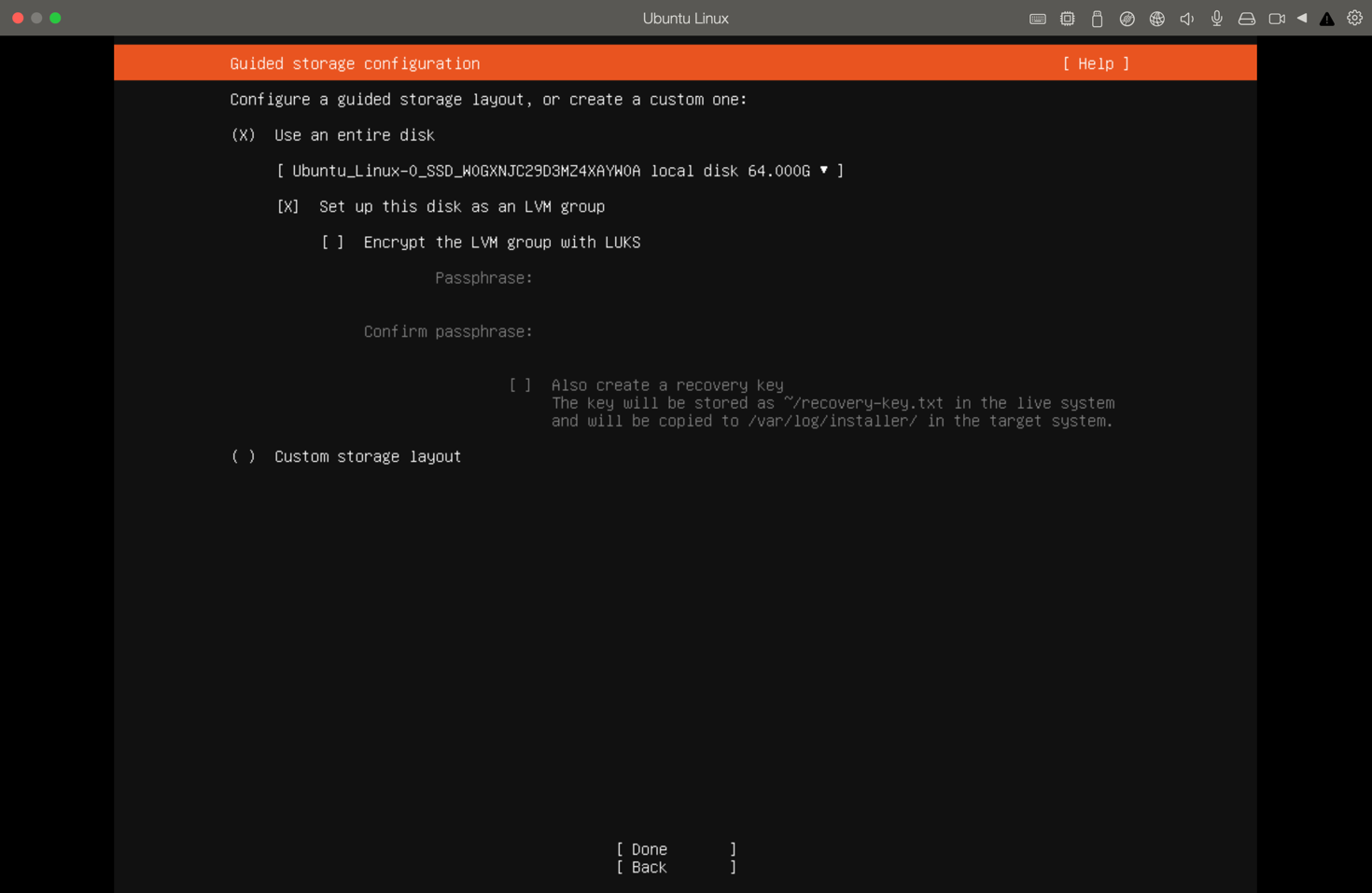
Move down and de-select the option labeled using Space.
Make sure there is no X in the brackets
Leave the option enabled, which will erase the whole internal drive of the computer. Then, Select done.
You will see a summary of the storage configuration, select .
Next you will see a warning confirming destructive action, move the cursor to continue and select it with Space.
Next you will see a screen asking to set up the default account, I recommend the following configuration.
The username should be "wsprdaemon"
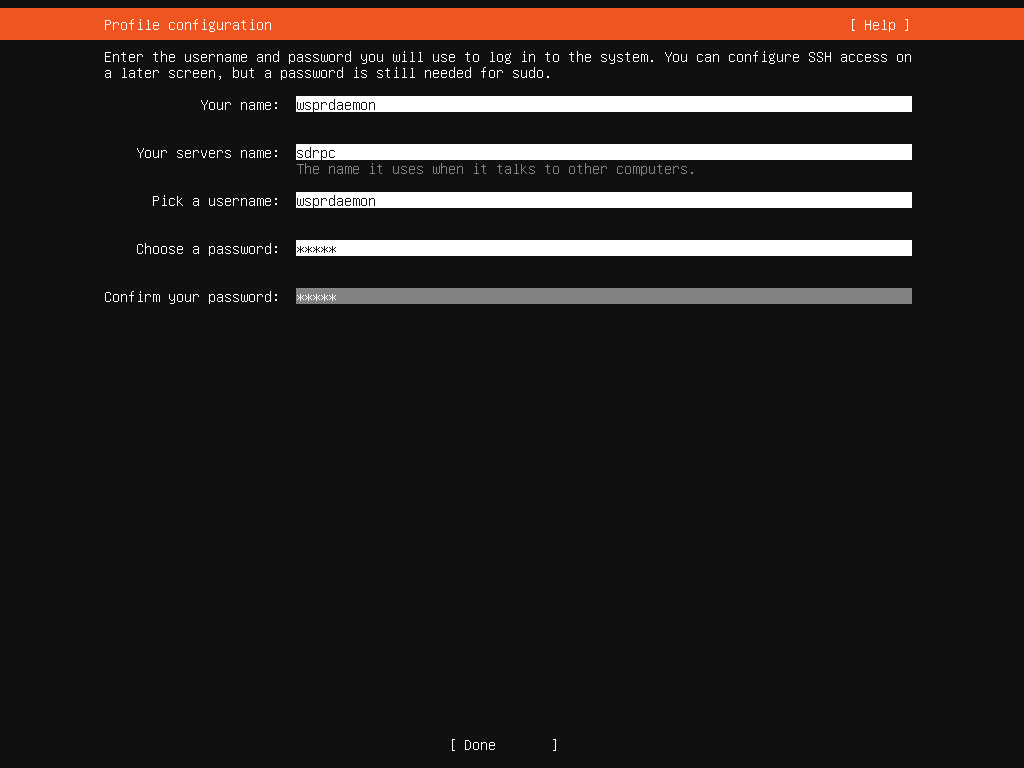
Once you have made your choices, select done.
On the next page you will be asked about upgrading to ubuntu pro, leave the default option of skip for now and continue.
Next you will see a menu for SSH configuration. move to "Install OpenSSH server" and select it with Space`

1.4: Configuring SSH Keys
Optional but recommended
SSH Is a tool that allows you to login to a server remotely while only needing to be connected to the same network.
This can be very useful as having a dedicated monitor for the server can take up a lot of space. Copying commands into the terminal can also be more difficult without SSH.
1.4.1: Installing OpenSSH to your PC
Optional but recommended
Open the Terminal application, or Windows Powershell., then enter the following command
OpenSSH should already be installed so this part can be skipped.
Now once you have OpenSSH installed enter the following command.
It Will then print the following
or with the equivilent filepath on MacOS or Linux to the directory located at ~/.ssh (Note that a . prefix indicated the directory or file is hidden)
The terminal will output something along these lines.
Now type in the following line replacing the path with the path that was listed above on this line Your public key has been saved in C:\Users\Jeremy/.ssh/test.pub
Now copy or take note of the output for use later which will look something like this
Now create a GitHub Account
Once you have created your account go to settings and the tab labeled SSH and GPG keys
Now click the button that says New SSH key
Title it SDR server or something else that can identify the key. Leave the key type as Authentication Key
Under the text box labeled key, enter the line you copied earlier that begins with ssh-ed25519
Then press Add SSH key
Now go back to the SDR server and select the [ Import SSH Key ] option.
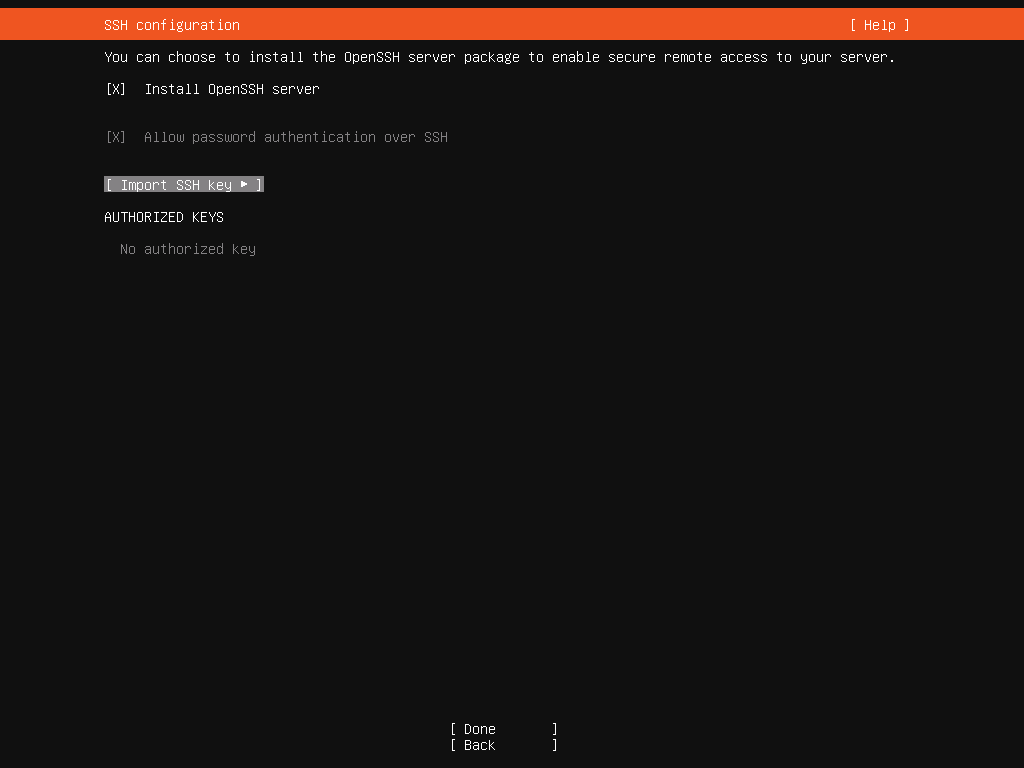
Now enter the GitHub username you created (note this is not your email, it is a username you created without spaces)
If you go to your profile it will be under your name as subtext.

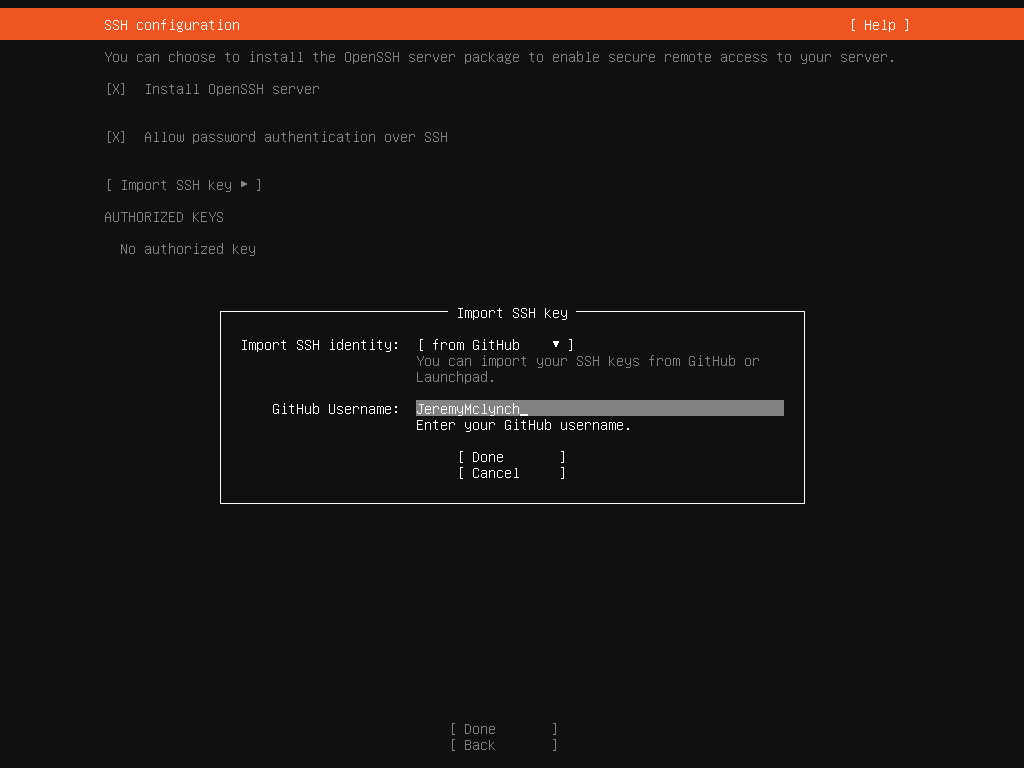
Then select Done
You should get a notification with something along the following. Select Yes
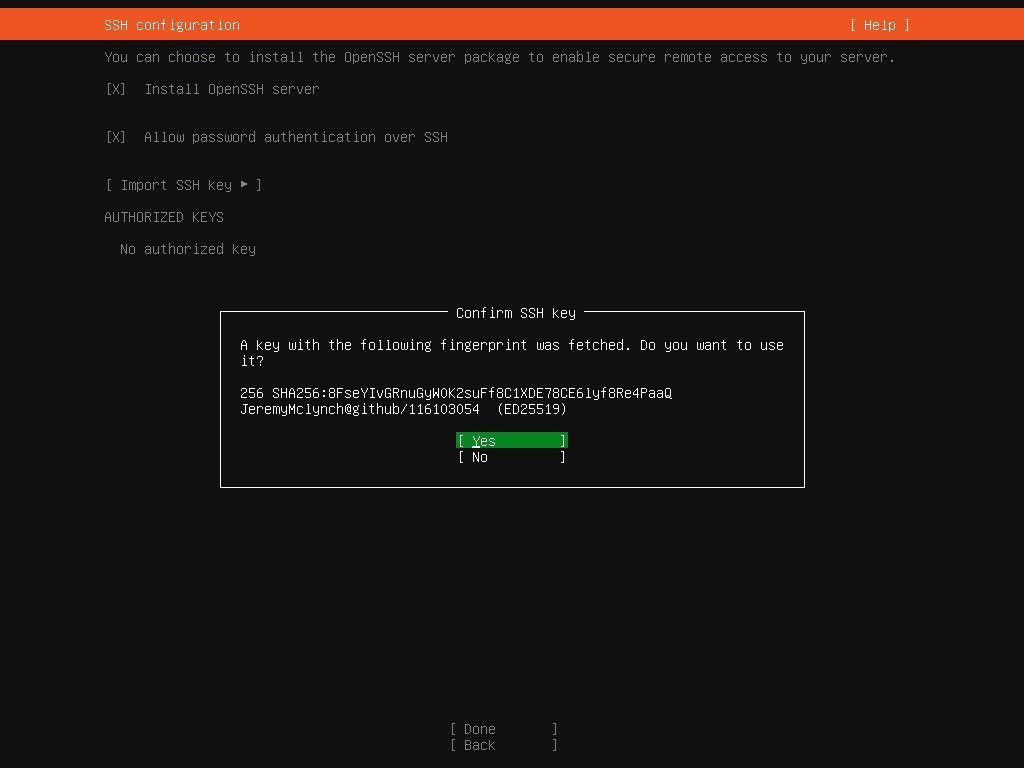
This has now preconfigured SSH for the installation.
1.5: Finalizing Installation
Then, move to done and select it.
You will next see a screen that may or may not list third party drivers, select any if applicable and select continue.
The next screen will give you several extra software that can be installed on the system, these should not be installed so you can select done.
The system will now start installing, this processes may take 5-10 minutes.
When it has finished a button will appear that says "Reboot Now" select it.
You will see a screen that says "Please remove the installation media then press enter", remove the flash drive then press enter.
The system will now restart.
2: Configuring the System
You will be asked to login to the system.
Enter the username you created earlier, then the password.
You are now logged into the system.
Start by updating the preinstalled software and operating system.
Enter the following commands.
You will be asked to enter the password to your account.
After each command runs you will see a lot of text run across the screen showing what is happening. Wait until you see wsprdaemon@sdrpc:~$ which is the terminal prompt indicating you can enter a command again.
You also may see a question asking if you would like to continue, enter y and press enter.
Wait a few minutes for the software to install.
Now run the following commands to disable a system component called snap. This a type of software management tool that we do not want running on our system since it will auto-update some programs which can cause issues with our automated scrips.
2.1: Configuring Network for WPA2-Enterprise (University/Eduroam Wi-Fi)
You may have connected the system to ethernet or for NJIT used the NJIoT Wi-Fi, but this network is not ideal for the server so we need to change it. If you continue to use ethernet or are using a WPA Personal Wi-Fi (Only a Wi-Fi password to login no username) you do not need to do this step but if you plan to place the server somewhere without a LAN connection, and you did not setup the Wi-Fi in the preinstallation environment and are at a University use this process.
Enter the following command.
Once the package has installed enter the following.
Then enter the following
2.1.1 Network-Manager Terminal UI [nmtui]
The following is the configuration to setup and activate a WPA-2 Enterprise connection, however, depending on your network or personal prefrences it may be easier to use the Terminal User Interface version of network-manager. I will not explain this one as going over the interface is a bit harder to do using text but it may be easier to understand how to use this interface as it is very similar to the one used in the Operating System set up screen from Part 1.
Launch Network-Manager TUI
Otherwise, I recommend following the next steps, which describe using the Network-Manager Command Line Interface.
2.1.2 Network-Manager Command Line Interface [nmcli]
The output should contain a few lines including lo, enp1s0, wlo1, or similar.
Look for the item starting with w which may be wlo0, wlo1, wlan0, wlan1, or similar. This is the Wi-Fi card device ID.
Then enter the following, replacing wlo1 with the Wi-Fi card ID that was on your system, and NJITsecure with the SSID of your Wi-Fi network. (SSID just being the name of the network when it shows up in settings on your computer or phone)
This will open a new shell to edit the network config.
Replace USERNAME and PASSWORD with the username and password you use to login to your network.
Wait a few seconds, then you should get an output stating the connection was successful.
Press any button to go back to the command line. Then, enter quit to exit the configuration shell.
You should now be connected to the Wi-Fi.
If you would also like to add Ethernet as a backup do the following.
Read this document if you have never used vi/vim before. Neovim Guide
Then, edit the text to change the line that says managed=false to managed=true.
Save and quit, then run...
To restart the system.
After logging back in...
Now enter,
This should list the different network devices on your system including one with the type ethernet
In my case this was enp1s0
Then enter,
replacing enp1s0 with your ethernet device ID.
Now you should have both the Ethernet and Wi-Fi as connected wireless interfaces.
2.2: Setting up Tailscale VPN
Not required but highly recomended as this allows you to remotely access your system, even on other networks
Now we will install Tailscale which is a VPN software that allows you to create your own private VPN network with your personal devices. This is recommended as otherwise you can only access the server locally, and you can have issues if you have multiple Wi-Fi access points like in a university since IP addresses and hostnames are not universal across the network.
Create an account for Tailscale
Note that using a university email address may not work so using a personal or dedicated email for tailscale is recomended.
Enter the following Command.
Once it has finished installing run,
This will then display a URL pointing you to login to your tailscale account.
Once you have logged in, download Tailscale on your personal system and login.
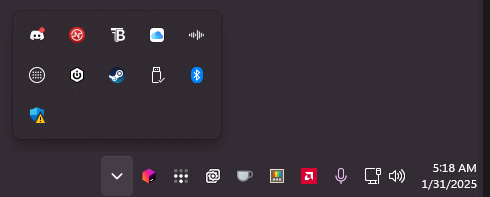
Note that once tailscale is installed it will be located on the system tray in windows in the bottom right of the screen, and for MacOS it will be in the menu bar at the top right of the screen.
This is the icon. 
It may be hidden behind the arrow
2.3: Logging in to the Server with SSH
Now open the terminal on your personal computer and type in the following.
If your computer cannot resolve the sdrpc hostname, go to the Tailscale Admin Console
Then find the machine named sdrpc and copy the IP address starting with 100.xxx.xxx.xxx
Then re-enter the command as
You should get a message saying the fingerprint is not recognized type in y or yes depending on what the output asked.
If you created the SSH key earlier and added it to the system via GitHub you should be automatically logged in, otherwise you will need to enter the password of the wsprdaemon account.
If you used the SSH key and want to login to the server from a different computer copy the file located at ~/.ssh/id_ed25519 on your personal computer (~/ indicating your user home folder). As mentioned before the .ssh directory is a hidden directory so you will need to enable hidden files in finder/file explorer. Run the following command in terminal on your personal computer to copy the file to your desktop. (if using windows make sure you are in powershell)
then copy this file to the ~/.ssh directory on the other computer. If this directory doesnt exist make sure OpenSSH is installed and if it is type the following in to create the directory. Make sure Tailscale is also installed and configured on the other system.
2.4: Installing Wsprdaemon
Finally we can install Wsprdaemon
First lets install some prerequisite tools and utilities by running the following command. (Quite long so i recommend using SSH to allow pasting)
Type y or select yes to any prompts that come up.
Then, we want to configure our system to run sudo commands without requiring a password (this is why the ssh key is recommended).
We need to install a text editor first, there are ones preinstalled but this is the one I recommend.
In the SDR connection terminal (via SSH), run the following.
This is a text editor called neovim, based on the vi and vim editors. It can be hard to use sometimes so don't be afraid to look up a vim guide if you get stuck. Some helpful quick information is located in this guide...
By default, you are in normal mode which allows you to move around the cursor. Now press i to enter insert mode allowing you to type. Enter the following,
then, press esc to exit insert mode.
to save the file press : to enter the vim commandline, and type in wq!
w to save or "write", q to quit, and ! to force the operation since the directory is protected.
Now run:
Which will install git, this allows us to download the source code for wsprdaemon to allow us to install it.
Then run,
This will clone the installation files from the source repo onto the computer, then run the main script inside which will create a template configuration file to be edited.
2.4.1: Configuring Wsprdaemon
If you are not comfortable with using vim, I would recommend downloading the configuration template from the Wsprdaemon GitHub
Then, editing it in notepad, or textedit on MacOS. (Make sure you are editing it as plaintext)
I used the configuration listed below, however, since I created this documentation before the official documentation I do not know what the official recommendations will be, so HamSCI will likely release a better config in the future.
If you know what you are doing I recommend going through the config template and creating the config yourself as there are, many more features we are not going to use as they are not relevant for the HamSCI PSWS application.
(You can also copy this into notepad/textedit to use if you prefer as well)
On the line WSPRNET_REPORTER_ID="<YOUR_REPORTER_ID>", replace the "<YOUR_REPORTER_ID>" part inside the Quotes with your FCC registered Callsign. If you do not have one as far as I understand it if you are part of a university you can use the callsign registered to your university, or if none at all a short nickname. As we are not transmitting any signals we are not required to have a FCC registered amateur radio licence, however, I am not sure what HamSCI would prefer.
Do the same on the lines here,
As for the <Your Grid> section enter your callsign or address into this website https://levinecentral.com/ham/grid_square.php which will give you a grid square that refers to your global coordinates like FN20vp for NJIT in Newark, NJ.
2.4.2: Setting Up PSWS Account
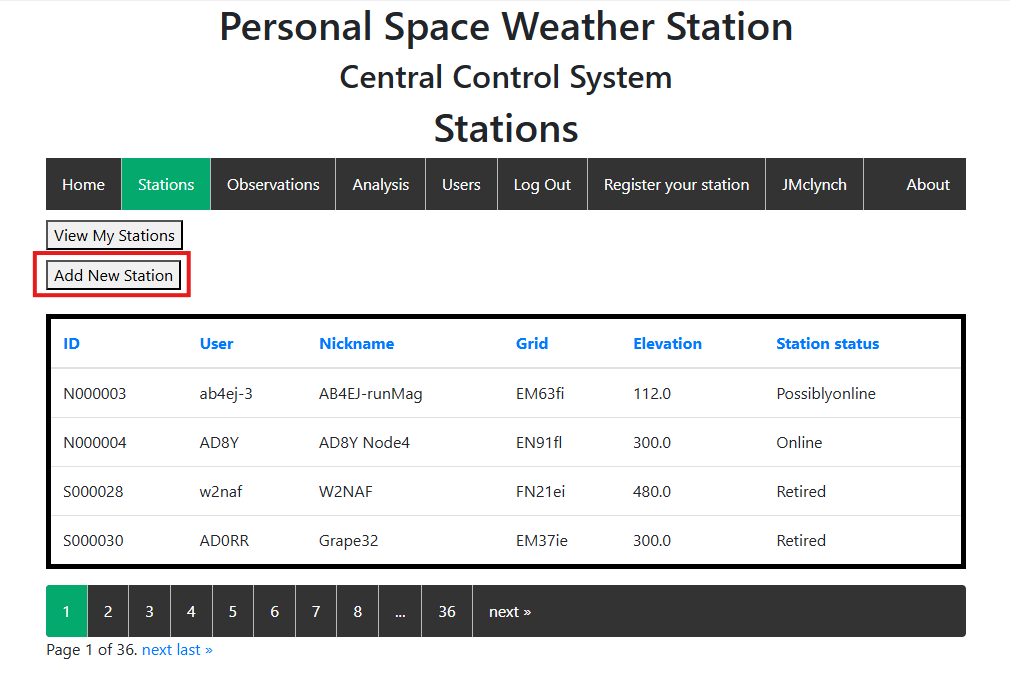
For these two sections GRAPE_PSWS_ID="<PSWS_STATION_ID> and PSWS_DEVICE_ID="<PSWS_DEVICE_ID>", you need to make an account at Personal Space Weather Station Central Control System website. Then create a station in the Station Tab and click the Add New Station button.
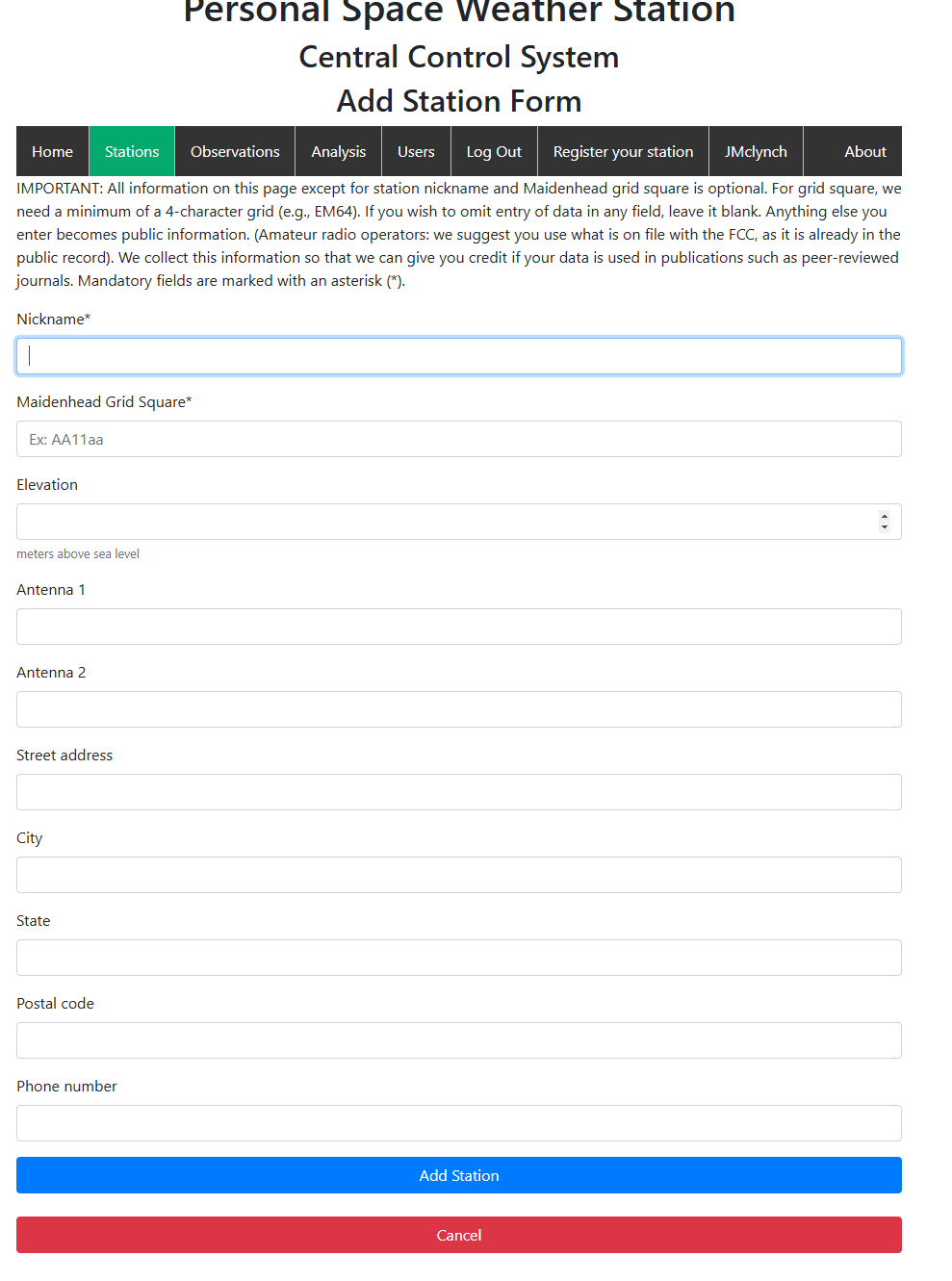
Add the station nickname which if you have a FCC callsign, should contain your callsign. If you are a larger organization id recomend adding that as well, eg. NJIT-K2MFF is the nickname for the system we created at NJIT.
Then add the Grid Square which is the same one we added to the configuration file earlier.
Elevation we can get from a barometer if you have one, or the compass app on iPhone will show your altitude, however, I am not sure how accurate it is, so I recommend using a barometer if you have one.
Antenna 1 and Antenna 2, is as far as I understand where you specify what type of antennas you have installed at your site.
The last part is entering your address and contact info.
Then select the View My Stations button under the Stations tab, then take note of the Station ID.
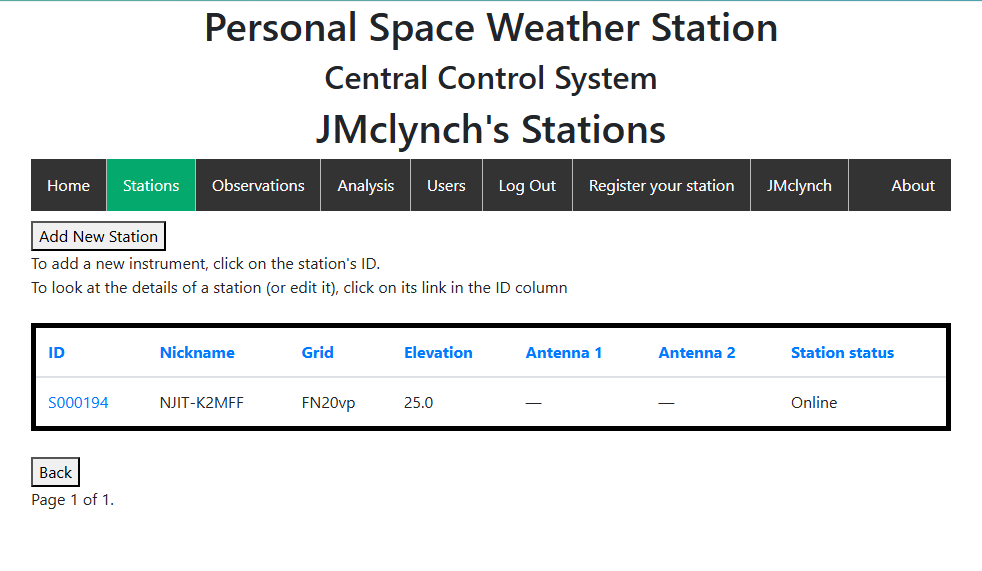
Then select the station, and take note of the Token. (This is the secret key for the server identification and authentication which is why I redacted mine)
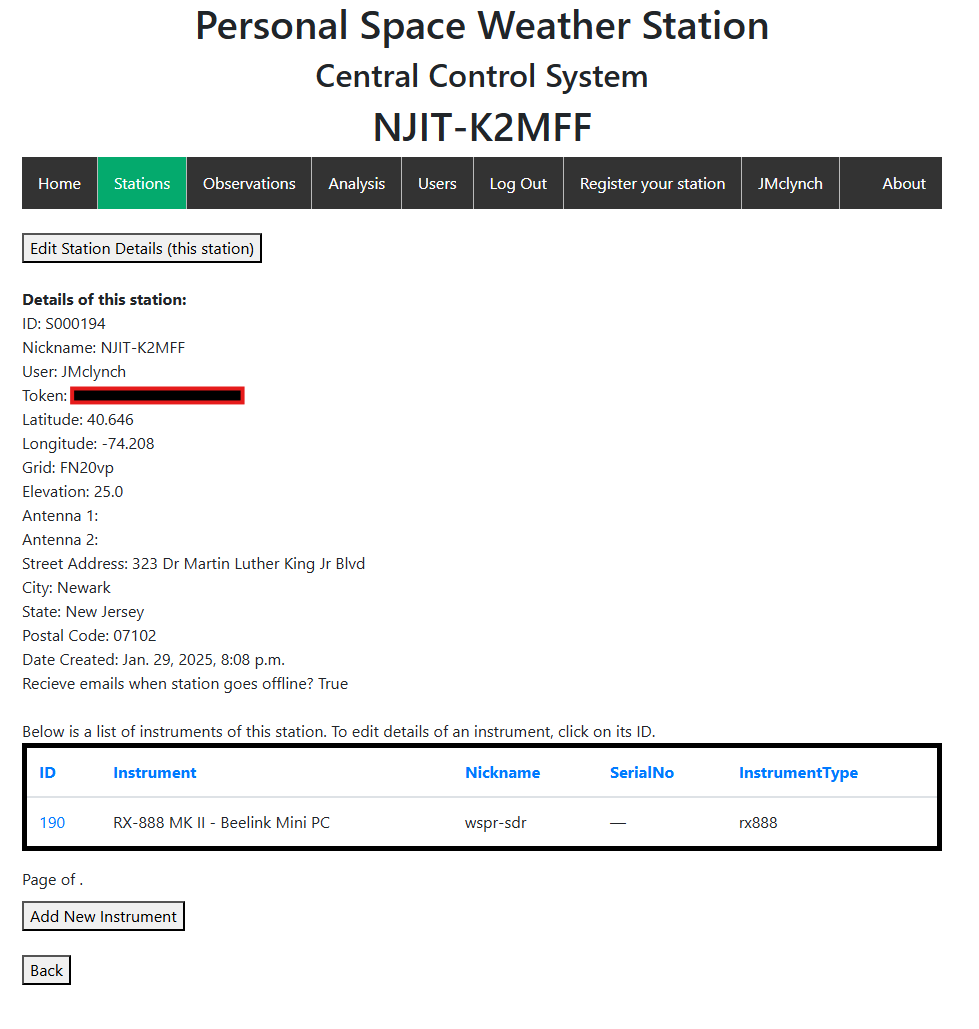
Then, select Add New Instrument.
Add a nickname for the Instrument, I named mine RX-888 MK II - Beelink Mini PC to show what SDR I am using, and what the server computer is.
Date instrument added is I believe the date that the server is operational and data coming from the server is accurate, as for example our server was setup and sending data but was not actually connected to our antenna yet, so the data is not good.
Nickname is not required but if you have multiple of the same instruments this will allow you to identify which is which.
Serial number is optional and up to the person installing to add to.
Status is entered to identify if the station is operational or inactive, even if it is connected to the network and sending data.
Instrument Type is where you select the type of radio being used, for the Wsprdaemon we are using a rx888.
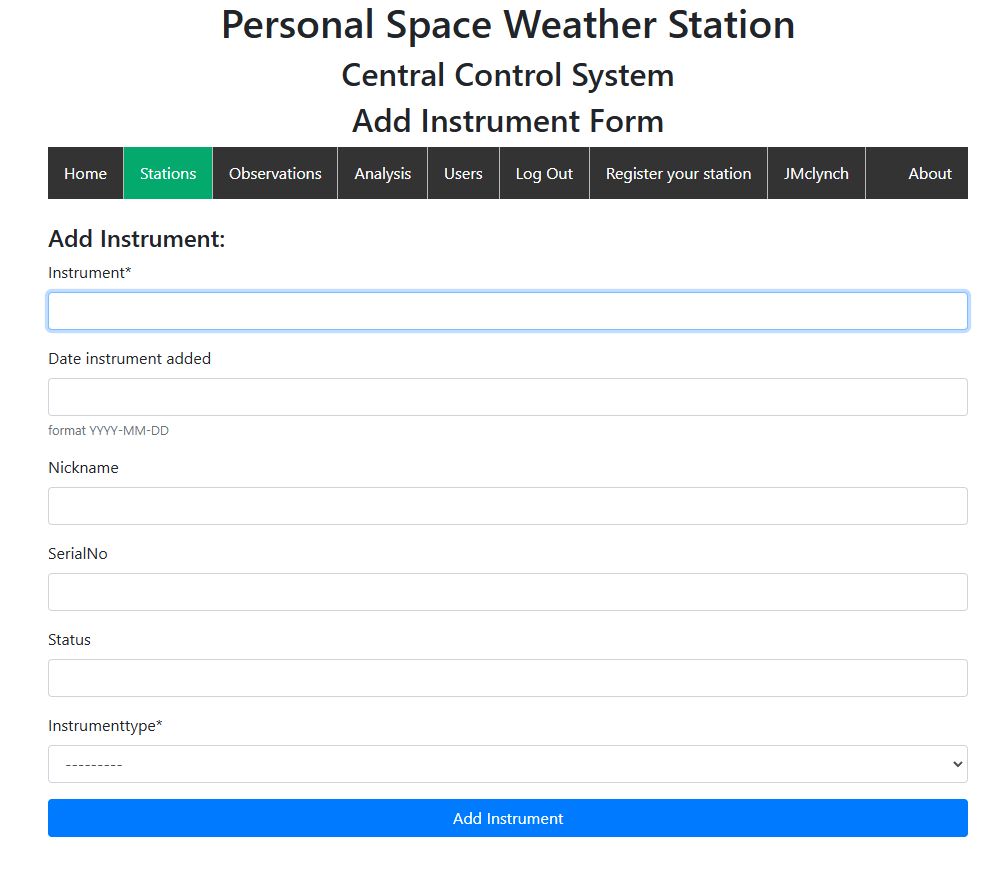
Then, add the instrument and take note of the instrument ID.
2.4.3: Finishing the Configuration File
Now go back to the config file and change the GRAPE_PSWS_ID="<PSWS_STATION_ID> and PSWS_DEVICE_ID="<PSWS_DEVICE_ID>" lines to the numbers you added.
The configuration file should look something like this,
Once you have your configuration written, if you would like to directly edit the existing template configuration you can use,
But if you would rather copy and paste your configuration file from your computer to the server I would use the following commands which removes the premade template and the next one allows you to create a fresh one.
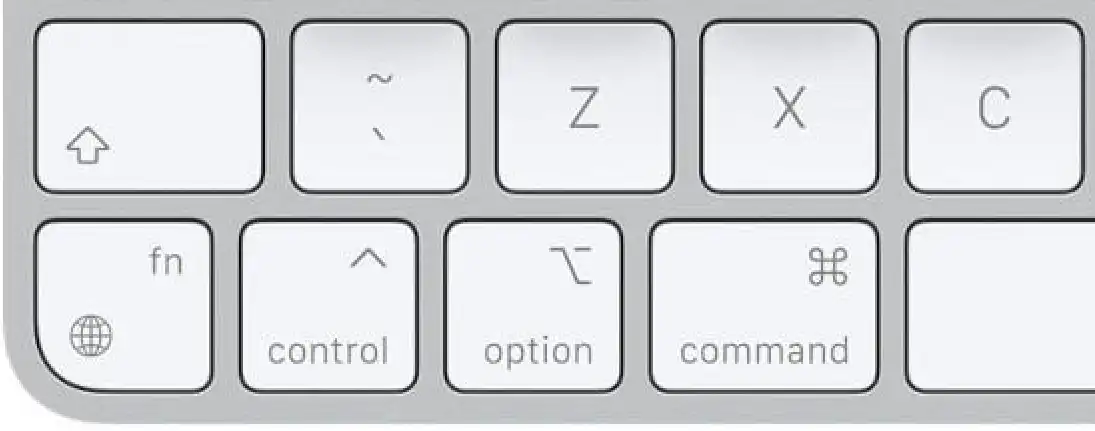
This should delete the old template and open a fresh file to edit, now copy the configuration text file on your computer and in vim on the server enter insert mode by pressing i and either do CtrlShiftV, or on MacOS ⌘ CmdV. (right-clicking then selecting paste will also work)
This should paste the whole configuration file into the server. If you messed up somewhere you can quit without saving by going into normal mode by pressing escape entering :q! then, try again with nvim ~/wsprdaemon/wsprdaemon.conf then perform the steps again
Otherwise, go into normal mode with escape as well and enter :wq to save and exit the editor.
Once you have saved the configuration file run these commands again.
This will start installing a lot of packages and will take quite a while. Once it is done it should say something like "ka9q-radio added your user to the radio group, log out and log back in to save changes"
Or it may error out mentionioning something about "Update_ini_file_section_variable /etc/radio ....." if this happens attempt to run ./wsprdaemon.sh -V again.
If the error occurs again, reboot the computer with
This will restart the server and should end the ssh session, wait a few minutes then re-run this command on your computer to reconnect. (If using SSH)
Then log back in, and run ./wsprdaemon.sh -V again.
Now at some point you should get a prompt saying that the RX888 MkII is not attached to a USB port.
2.4.4: Setting the GPS clock speed
When you get this message, plug in the RX888 to one of the USB 3.0/Super Speed ports (Blue USB ports), and make sure the GPS clock is connected to the RX-888 SMA input, and plug the GPS clock USB port into one of the USB ports on the beelink.
Now run move back to the home directory by entering,
and run the following command.
now these,
then run this to list some of the devices plugged into the computer. (Keyboards will show up if they are plugged in, if not it will probably only show the GPS clock)
now take note of how many /dev/hidraw devices there are.
now run this command, replacing .../hidraw0/... with ones from your list.
You know you have the correct device if it outputs something similar to this,
If it does not, try again but use a different hidraw number.
Once you identify the correct device number, run this command replacing the /dev/hidraw0 with what ever number you found was correct.
Once you run this command, the LED on the GPS device should blink rapidly a few times, if this happens the command was sent correctly. This sets the clock to 27MHz output which is the required frequency for the RX-888.
2.4.4: Setting up the PSWS
Now run
Now, you should not get any more errors but you should get a prompt asking Enter file in which to save the key (/home/wsprdaemon/.ssh/id_ed25519):
When you get here, press Enter 3 or 4 times, including when it asks for a passphrase.
2.4.4.5 Fixing the PSWS Autologin
Enter the following command to print out the public key of the SSH key you just made.
Copy down the output to a text file or notepad file on your personal computer. It should look something like this,
Now run the following command to ssh into the PSWS server manually,
Now once you are logged into the PSWS server run this command, make sure you use vi not nvim since that is what we normally have been using.
Then, using i to enter insert mode, and paste or type in the public key from before that begins with ssh-ed25519 .....
now press escape to exit insert mode and hit : and type in wq to save and quit.
Now type in exit to kill the connection and go back to the beelink system. Then, type in wdssp one more time to verify that the computer does not prompt you for a password, if it does then you need to try to retrace the steps and try again.
2.4.4: Setting up the PSWS (continued)
Now run the following commands
Run cd wsprdaemon and ./wsprdaemon.sh -V one more time, and you should get the version number printed out into the console.
Once this happens we can start wsprdaemon,
Now run,
To start wsprdaemon and add it as a login item to start when the server turns on.
Then run this to initialize the PSWS recording,
Once you can type again, the server should be running. You can confirm this by running this command.
You should get an output like this.
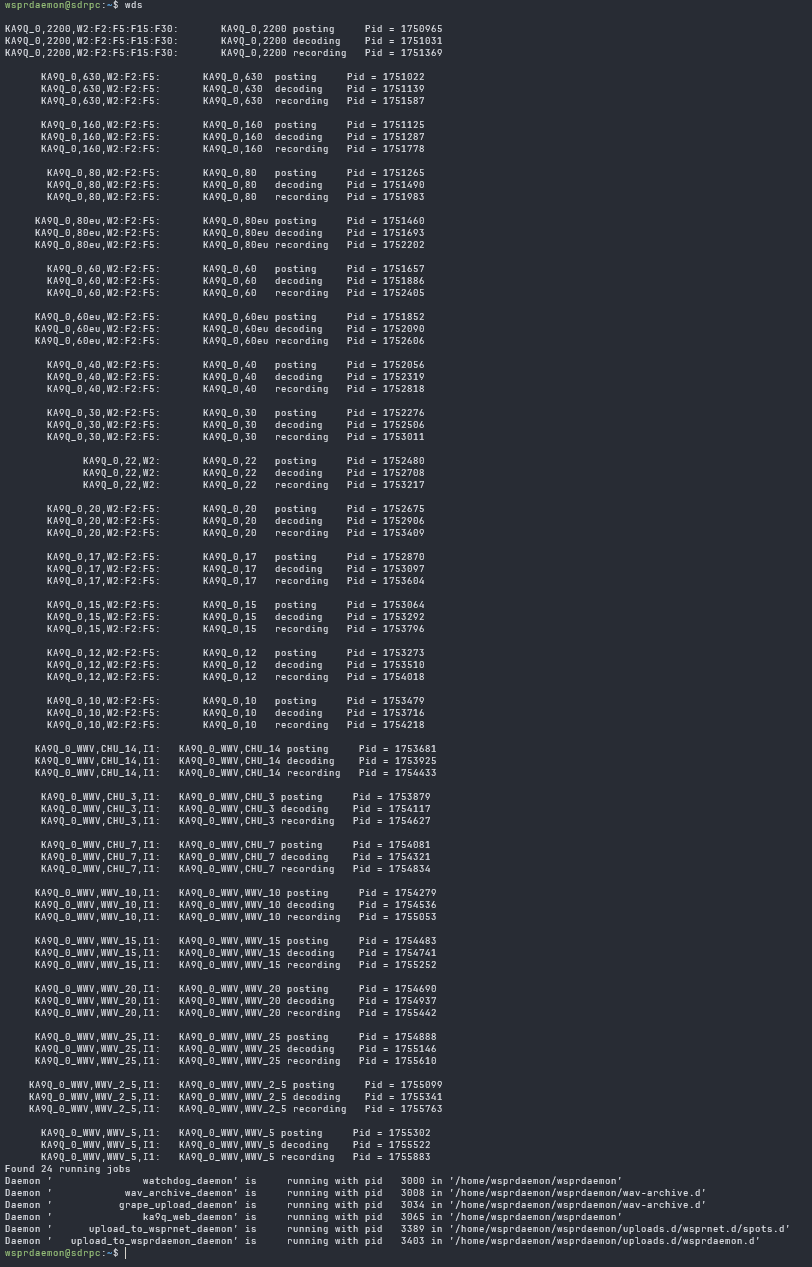
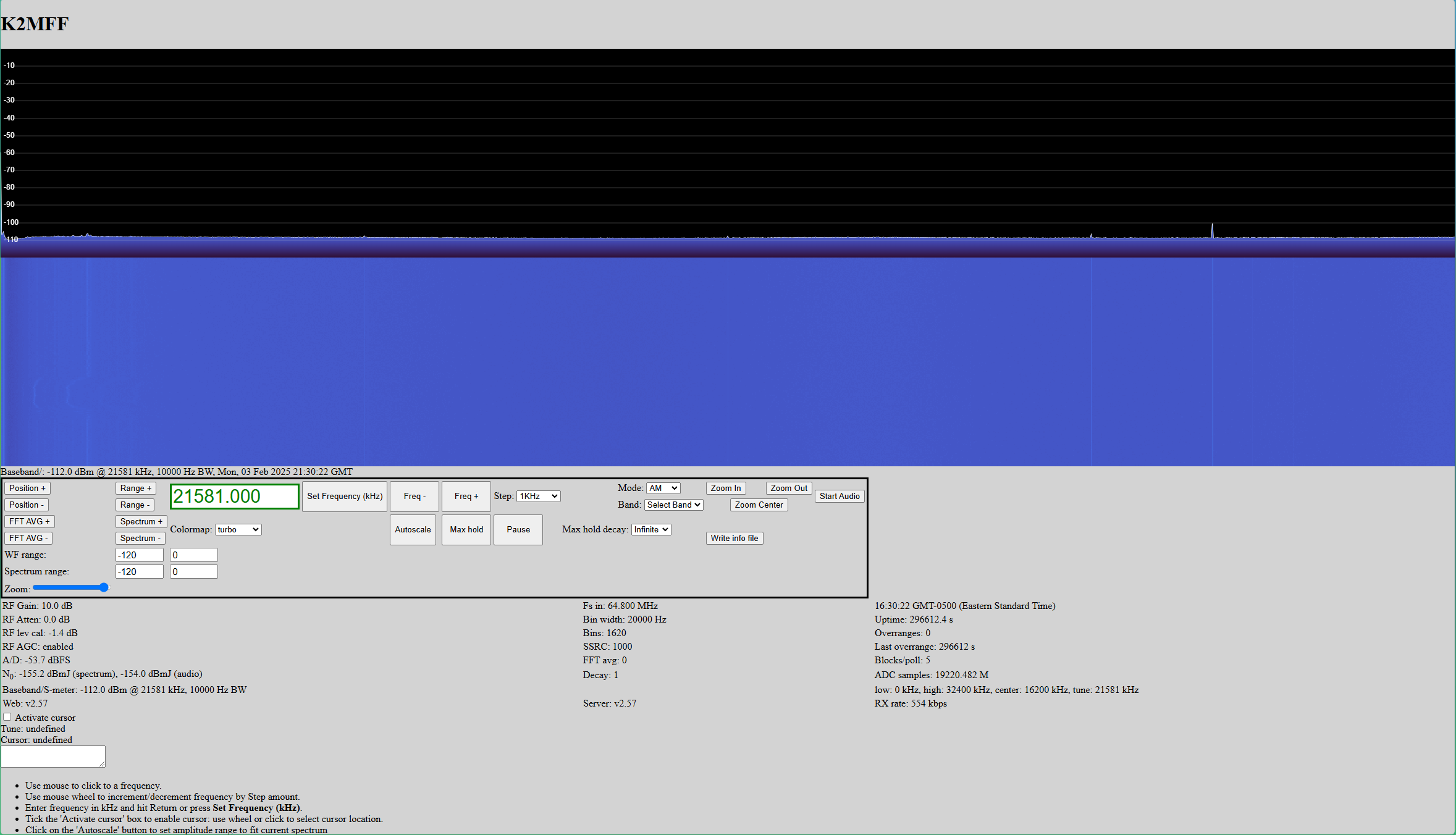
And if you go to a browser on your computer you should be able to type in this url http://hostname:8081/ replacing hostname with your server's hostname (the name that is after the @ in wsprdaemon@hostname on your server's prompt eg. http://njit-bl-1:8081/ in my case)
Which should bring you to this interactive web page running locally on the server allowing you to view the signals it is decoding.
Your server should also now show up as active on the PSWS Website

Typing into the command line on the server
Will list out the available commands part of wsprdaemon to manage the server.